






















Setting up a gaming desk is less about decorating and more about creating a space that feels natural, comfortable, organized, and easy to use. A well-arranged desk reduces strain, improves focus, and helps everything flow smoothly during long gaming sessions.
This guide walks through each step in logical order so you can adjust what you already have, fine-tune your layout, and create a workspace that actually works for you.
Position the Desk in the Right Spot
Before adjusting anything on the desk, start by placing the desk correctly in the room. Good positioning prevents glare, awkward movement, overheating, and messy cables before they ever become problems.
Think about space, lighting, and access, not just where it “looks nice.”
Placement tips
- keep the screen away from direct sunlight or reflection
- leave enough space behind the desk for cables and air circulation
- avoid placing your PC against walls that trap heat
- make sure your chair can move freely without hitting objects
A correctly positioned desk instantly makes the rest of the setup easier.
Adjust Desk Height for Natural Body Alignment
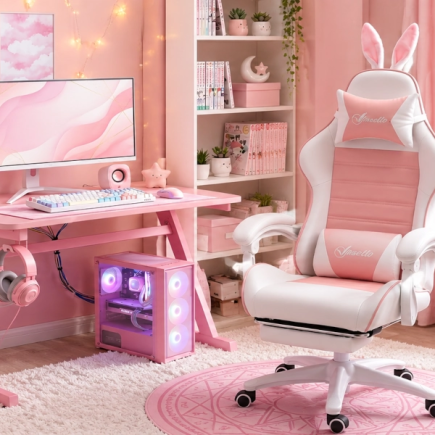
Desk height determines how your shoulders, wrists, and back behave. When it’s correct, you feel relaxed especially when paired with proper seating that highlights the ergonomic chair benefits of better posture and reduced strain. When it’s wrong, you constantly shift, lean forward, or lift your shoulders.
Set it like this
- elbows rest around 90–100 degrees
- wrists stay straight, not bent upward or downward
- forearms lightly rest on the desk instead of floating in the air
- shoulders remain relaxed instead of lifted
If your desk cannot move, adjust around it:
- raise the chair until your arms feel comfortable
- use a footrest if your feet no longer touch the ground
- set armrests so they lightly support your forearms
Getting this right improves comfort more than almost anything else.
Position the Monitor Correctly
Your monitor determines where your neck, head, and eyes stay for hours. Even small mistakes here create fatigue very quickly. Setting it correctly reduces strain and helps you focus better.
Think through three factors: Distance, Height, and Angle and adjust slowly.
Distance
Place the monitor about one arm’s length away so the screen fills your vision without forcing your eyes to work too hard.
Height
Your eyes should align with the top third of the screen. This allows your gaze to naturally drop downward, reducing neck tension and preventing you from lifting your chin.
Angle
Tilt the monitor slightly backward, keeping it centered directly in front of you.
For multi-monitor setups, keep the primary screen centered and angle side monitors toward you to avoid repeated neck rotation.
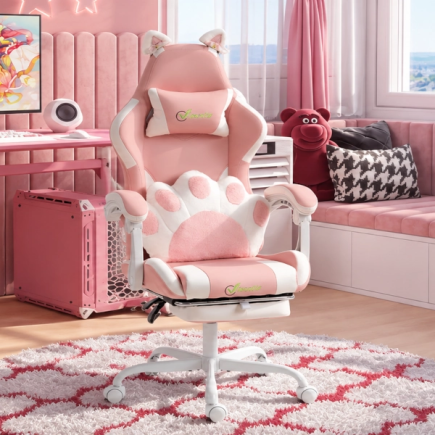
Set Up the Chair to Support You
A chair should support your spine instead of forcing you to hold yourself upright. Good positioning helps you stay relaxed without slouching or leaning forward.
Adjust the chair first then fine-tune everything else around it.
Focus on these adjustments
- lower-back support gently follows your natural spine curve
- seat height keeps both feet flat on the floor
- armrests rise to meet your arms instead of forcing your shoulders up
- backrest supports you without pushing you forward
Ideal sitting position
- knees close to 90 degrees
- hips slightly higher than your knees
- back resting naturally against the backrest
- shoulders relaxed, not rounded forward
If you constantly lean forward, the real problem is usually monitoring height or distance, not the chair.
Place the Keyboard and Mouse for Comfort and Control
Your hands should rest naturally without stretching, twisting, or lifting. This improves precision and prevents wrist fatigue during long sessions.
Set them up in a position where they feel like an easy extension of your arms.
Keyboard setup
- align the keyboard with the center of the monitor
- keep it close enough so elbows stay near your body
- reduce aggressive tilting that forces wrists to bend upward
Mouse setup
- keep the mouse next to the keyboard to avoid reaching
- ensure there is enough open movement space
- use a mat or smooth surface for consistent tracking
If you angle your keyboard slightly, make sure it doesn’t twist your shoulders or pull one side of your body forward.
Tidy and Route Cables Early
Cable management isn’t cosmetic; it prevents tangling, overheating, and workspace clutter. Doing it while setting up saves you from fighting with wires later.
Think of cables moving in one organized direction instead of spreading across the desk.
Simple step-by-step cable routing
- drop cables downward from each device
- group similar cables together using ties or sleeves
- attach bundles to the underside or back of the desk
- mount the power strip below instead of leaving it on top
Helpful tools:
- reusable Velcro straps
- adhesive cable clips
- under-desk trays or baskets
- protective sleeves for multiple wires
- surge-protected power strip
A clean cable path keeps the desk organized and safer.
Add Lighting That Supports Your Eyes
Lighting should reduce strain, improve clarity, and create a comfortable atmosphere. Harsh, direct light makes screens harder to look at, while soft balanced light helps your eyes relax.
The goal is balance not brightness.
Best lighting approach
- use soft ambient light behind or near the monitor to reduce contrast
- add a simple desk lamp for focused work or reading
- avoid bright overhead lights shining directly on the screen
- avoid lights pointing straight into your eyes
A gentle glow around the workspace improves immersion and comfort.
Organize Accessories So the Desk Stays Clear
Accessories build up quickly: controllers, headphones, cables, notebooks, and speakers. When everything piles onto the surface, space disappears and movement becomes restricted.
Give each item its own place so your desk stays usable.
Useful organization ideas
- headphone stand instead of leaving them in the middle of the desk
- mounts or hooks for controllers
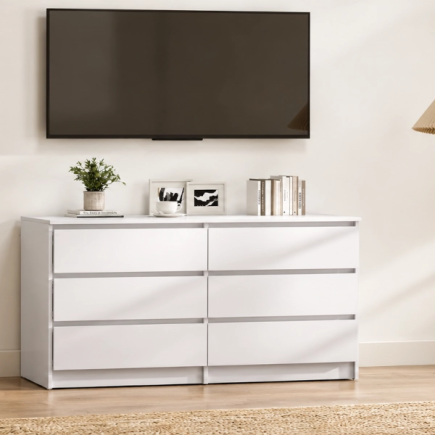
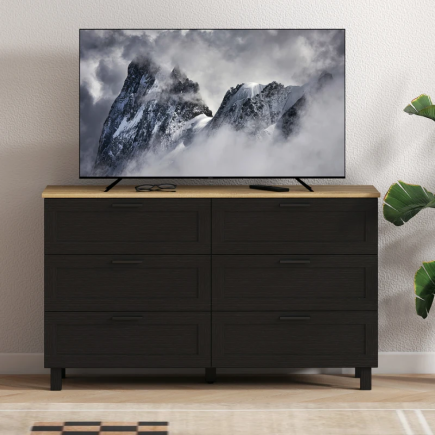
- small drawer unit or organizer for tools and cables
- risers or stands to lift speakers off the surface
- cup holder positioned safely away from electronics
A clear surface improves focus, speed, and overall comfort.
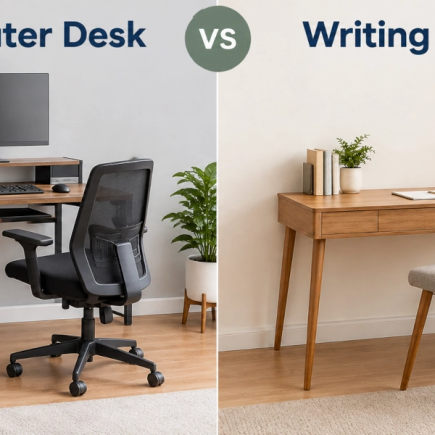
When the Desk Truly Feels Too Small
This section matters only after everything else is optimized. Many people discover they don’t need a new desk, they just need a better arrangement.
Consider upgrading only if:
- the monitor cannot sit at the right distance because the desk is too shallow
- the keyboard barely fits and restricts movement
- there is no space for the mouse to move freely
- cables constantly hang off because there is no routing space
When the desk genuinely limits ergonomics, then a deeper or wider surface becomes helpful but setup always comes first.
Simple Maintenance for Long-Term Comfort
A great setup stays great when it’s maintained. Small routines prevent clutter and wear.
- wipe surfaces and devices regularly
- remove dust buildup, especially around vents
- tighten monitor arms and mounts occasionally
- reorganize cables when adding new equipment
These habits keep your gaming desk clean, reliable, and pleasant to use.
A properly set up Gaming Desk doesn’t feel complicated or crowded. Everything sits where it should, your body feels supported, and you can focus fully without distraction. Start by positioning, aligning, and organizing and your desk naturally becomes more efficient, more comfortable, and far easier to enjoy.
FAQs
1. How do I stop wrist pain during long gaming sessions?
Keep the keyboard and mouse close so elbows stay relaxed and natural. Avoid aggressive keyboard tilt that forces wrists upward. Use a wrist rest only when your hands feel unsupported.
2. Why do I feel neck strain even with a good chair?
The monitor is usually positioned too high or too far away. Align your eyes with the top third of the screen for neutral posture. Keep the display centered to prevent constant neck turning.
3. How do I know if my desk is actually too small?
Mouse movement feels restricted during normal gameplay. The monitor cannot sit at a comfortable viewing distance. Cable routing becomes difficult even after organizing.